

In incident management, documentation is key, and PDFs need to be easily traceable to their respective incidents. The challenge arises when these files are shared or downloaded, making it hard to associate them with their original incident. A simple solution is to automatically watermark each PDF with the incident number.
In this post, we’ll explore how to automate watermarking PDFs attached to incidents using ConvertAPI along with Flow designer automation (Flow). This approach ensures every PDF is clearly marked and automatically linked to its corresponding incident.
How ConvertAPI Simplifies Watermarking
ConvertAPI is a powerful tool for handling document conversions and manipulations, including adding watermarks to PDFs. By integrating ConvertAPI into the incident management system, you can easily automate the watermarking process. For more details on Convert API you can visit ConvertAPI website.
Here’s how it works:
1. Create a Flow Action PDF Watermark in Flow designer / Workflow Studio.
A. Create Inputs for the flow action

Inputs will be Watermark value , Incident Sys ID and the File Name.
B. Create a Script Step to convert the pdf attached to Base 64 format. Input will be the incident record where the PDF is attached.

(function execute(inputs, outputs) {
    var tableName = 'incident'
    var recordID = inputs.recordsysid.sys_id;

    var attachmentContent = getAttachmentContentsAsString(tableName, recordID);

     function getAttachmentContentsAsString(tableName, recordID) {
        var gsa = new GlideSysAttachment();
        var bytesInFile = gsa.getBytes(tableName, recordID);
        var base64string = GlideStringUtil.base64Encode(bytesInFile);
        gs.info('Attachment content base64 encoded: ' + base64string);
        return base64string
    };

      outputs.pdfid = attachmentContent;

})(inputs, outputs);
C. Create a REST step.
We’ll utilize ConvertAPI to apply the watermark. To set it up:
- Base URL: Define the base URL for the API.
- Resource Path: Specify the resource path for the watermark endpoint.
- HTTP Method: Use the appropriate HTTP method (POST).
- Headers: Configure necessary headers, such as
Content-Type: application/json. - Request Body: Provide the JSON body containing the parameters like file data and watermark text.
If you’ve already created a REST Message in ServiceNow, you can reference it directly. Set “Build Request” to From REST Message.
The output will be the response from the REST Message execution.

This is a sample Request Body.
{
    "Parameters": [
        {
            "Name": "File",
            "FileValue": {
                "Name": "Test.pdf",
                "Data": ""
            }
        },
        {
            "Name": "StoreFile",
            "Value": true
        },
        {
            "Name": "Text",
            "Value": ""
        },
{
            "Name": "FontColor",
            "Value": "#808080"
        },
        {
            "Name": "TextRenderingMode",
            "Value": "stroketext"
        },
        {
            "Name": "Rotate",
            "Value": "45"
        },
        {
            "Name": "Opacity",
            "Value": "20"
        },
        {
            "Name": "Style",
            "Value": "watermark"
        }
    ]
}
D. Add a Script Step to get the URL from the response
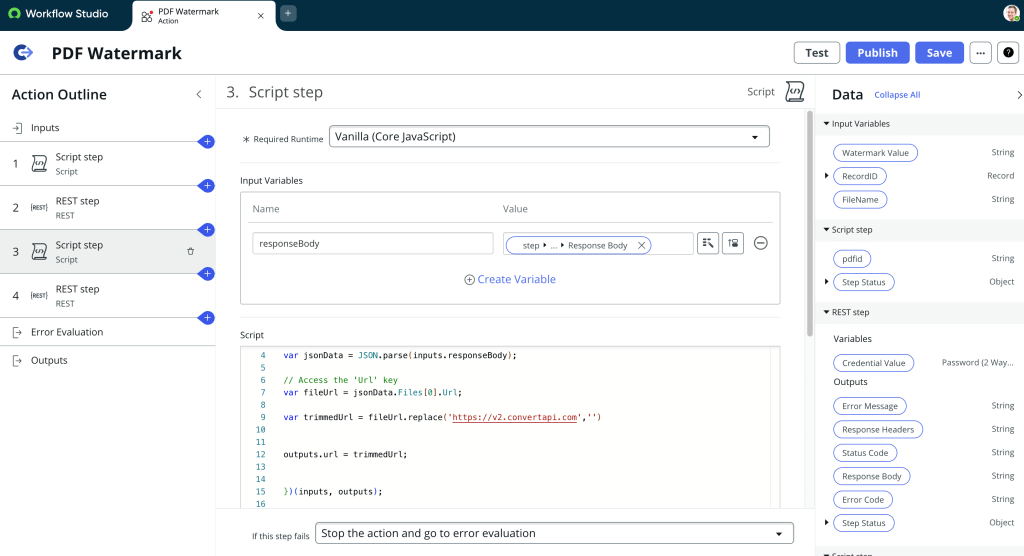
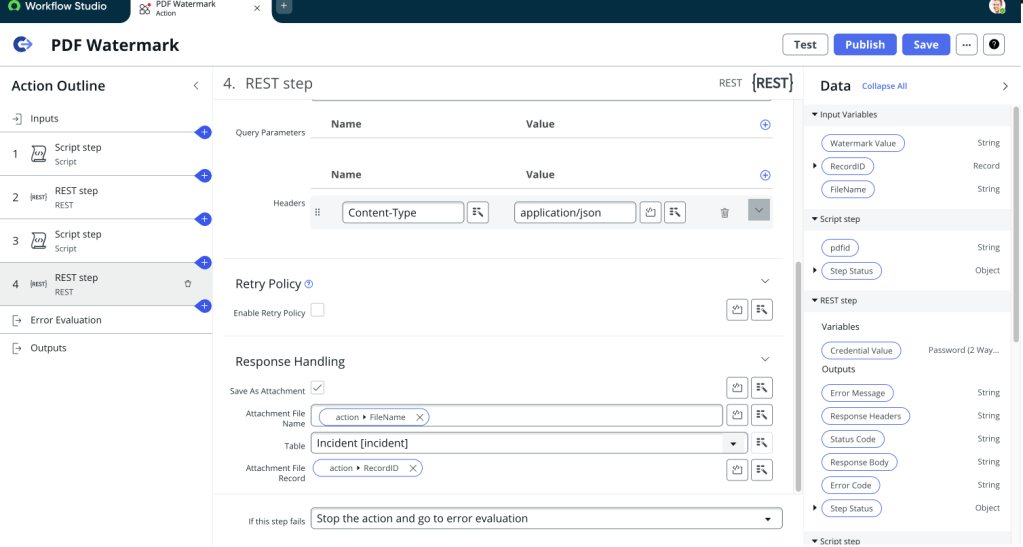
E. Create a REST step – GET to get the document from the API response
Resource path will the trimmed URL from the previous script step.

Under Response Handling, check the Check Box Save as attachment, Give the file name, destination table and the record.
F. We can add the Error Evaluation and set the outputs if its required.
Thats It..!
PDF Watermark Flow Action is ready. We can use the flow action in a subflow or a flow.
2. Create a flow and Add the flow action to it
A sample flow has been created for the sys_attachment table. In the PDF Watermark flow action, the following inputs are provided:
- Watermark Value: The Incident Number.
- File Name: The name of the attached file.
- Record ID: The associated Incident record.
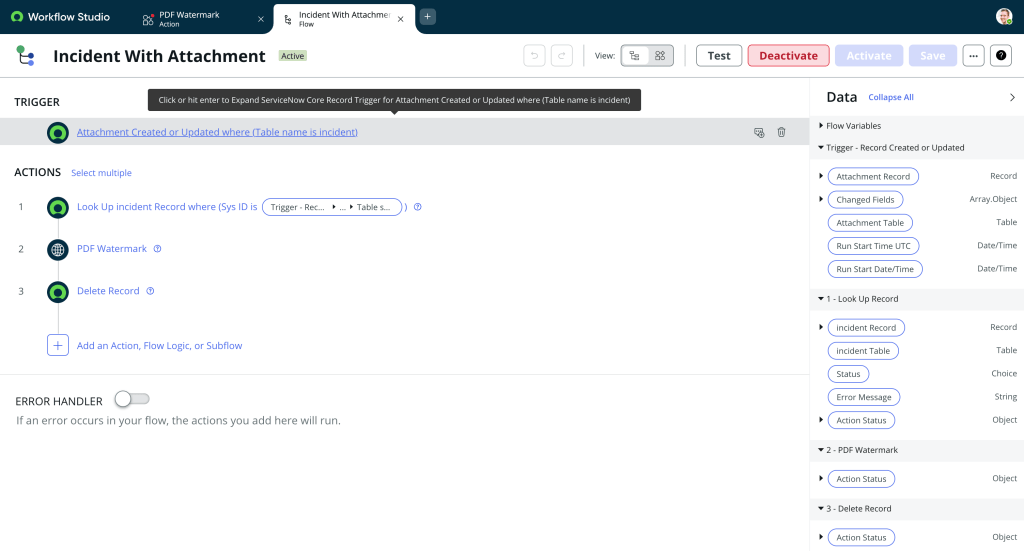
This is the sample output of the flow.

Ensuring Document Security and Workflow Efficiency
In conclusion, leveraging ConvertAPI and ServiceNow’s powerful capabilities for automating processes such as adding watermarks to PDF attachments streamlines workflows significantly. By integrating external APIs and utilizing flow actions in ServiceNow, organizations can efficiently manage documents and ensure consistency in their operations. This not only saves time but also reduces manual errors, making it a valuable addition to any automated process. For more detailed configurations and best practices, refer to the official ServiceNow and ConvertAPI documentation to get the most out of these tools.
This is a fun project…..In addition to automation and efficiency, it’s crucial to prioritise the safety and confidentiality of documents when using external APIs. Sensitive documents, like those containing incident numbers or client information, should only be shared with trusted and secure APIs. It’s important to thoroughly vet third-party services for security compliance before integrating them into your workflows. Exposing confidential data to unknown or unsecured APIs can result in data breaches and significant risks. Always follow security best practices to ensure that sensitive documents remain protected throughout the process.

 SnowTechStack
Leave a comment